> ## Documentation Index
> Fetch the complete documentation index at: https://docs.asteragents.com/llms.txt
> Use this file to discover all available pages before exploring further.
# Spend Caps
> Set daily, weekly, and monthly limits on your organization's AI spend so a runaway task can't run up a surprise bill
# Spend Caps
A spend cap limits how much your organization's agents can spend on AI models in a day, a week, or a month. When a cap is reached, new agent runs are blocked until the period resets or an admin raises the cap.
Caps guard against runaway usage: a scheduled task that fans out more than expected, a long multi-step job that keeps going, or a busy week nobody planned for. No caps are set by default, so nothing changes until you add one.
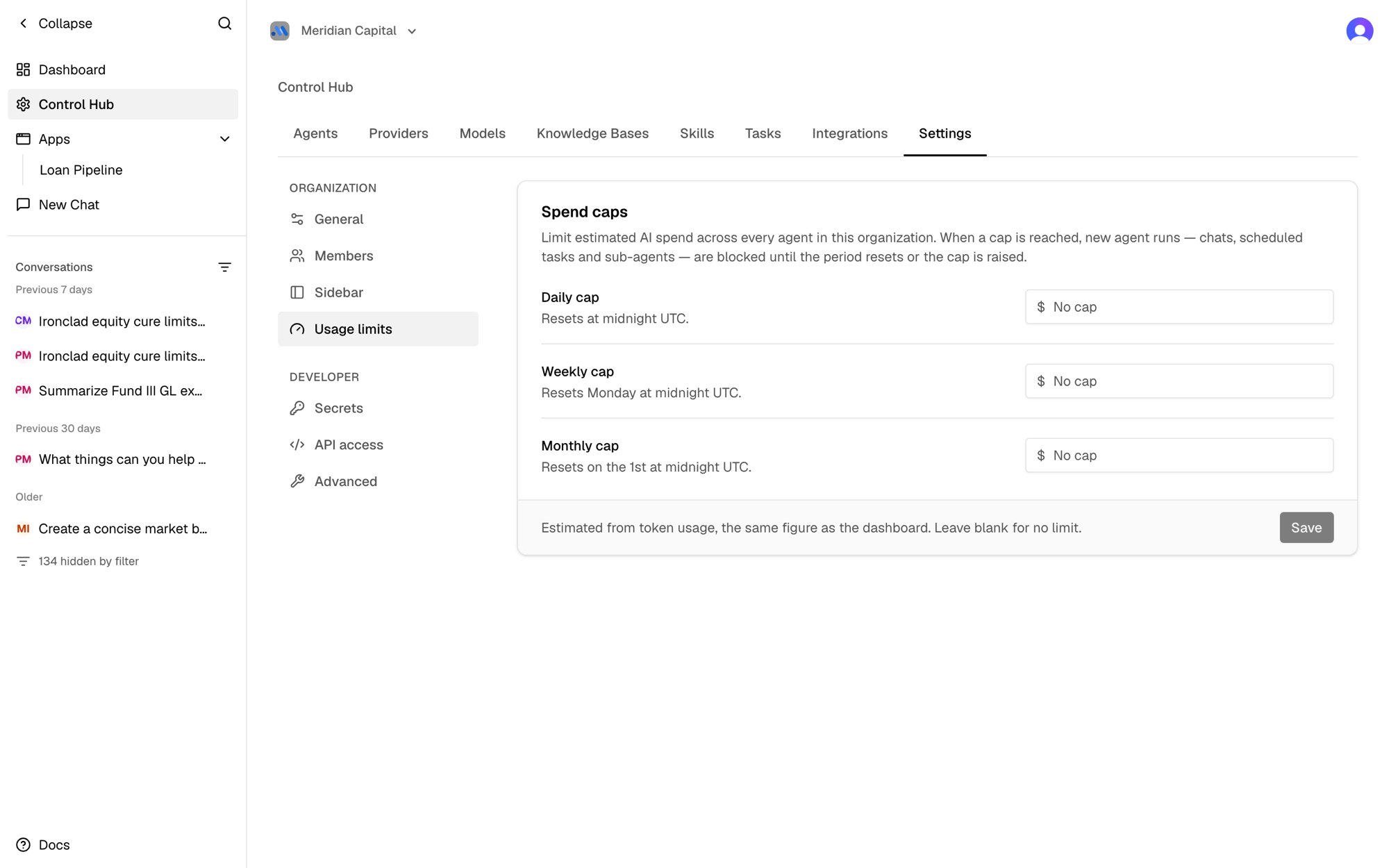 ## Set a cap
Only **Organization Admins** (`org:admin`) can set or change spend caps. See [Roles & Permissions](/settings/roles-permissions).
1. Go to **Control Hub → Settings → Usage limits**.
2. Enter a dollar amount for any of **Daily cap**, **Weekly cap**, and **Monthly cap**. Leave a field blank for no limit in that period.
3. Click **Save**.
You can set one, two, or all three. A run is blocked if **any** cap is reached.
Under each cap, a bar shows how much has been spent so far in the current period. It turns amber at 80% and red once the cap is reached. A dot next to **Usage limits** in the Settings menu shows the same warning from any other settings page.
## When caps reset
Periods follow the calendar in **UTC**:
| Cap | Resets |
| - | - |
| Daily | Every day at midnight UTC |
| Weekly | Every Monday at midnight UTC |
| Monthly | On the 1st of each month at midnight UTC |
## What happens when a cap is reached
* **Chats:** the conversation stops with a message saying which cap was reached and how much has been spent. The message people sent is kept, so nothing is lost.
* **Scheduled tasks:** the run is skipped and recorded as failed in the task's run history, with the same message.
* **Sub-agents:** an agent that calls another agent gets the message back as an error.
* **Work in progress:** a long-running task stops at its next checkpoint instead of continuing. The stretch of work already underway (up to a few minutes) finishes first, so spend can go somewhat past the cap.
To unblock your organization, raise or clear the cap, or wait for the period to reset.
## How spend is measured
Spend is **estimated** from the tokens each agent uses, priced at each model's list price — the same figure as the cost on your dashboard. It is not your provider's bill, which can differ slightly because of discounts or rounding.
The estimate covers agent conversations, scheduled tasks, sub-agents, and app actions. It does not include:
* Knowledge base processing (embedding and extraction)
* Conversation titles
* Models without a list price in Aster, such as some custom Azure deployments
For a hard limit on your provider bill itself, also set a spend limit in your AI provider's console (for example, a workspace spend limit in the Anthropic Console or a project budget in the OpenAI dashboard). Aster's caps stop runaway agent work early; your provider's limit caps the bill.
This documentation is built and hosted on [Mintlify](https://mintlify.com), a developer documentation platform.
## Set a cap
Only **Organization Admins** (`org:admin`) can set or change spend caps. See [Roles & Permissions](/settings/roles-permissions).
1. Go to **Control Hub → Settings → Usage limits**.
2. Enter a dollar amount for any of **Daily cap**, **Weekly cap**, and **Monthly cap**. Leave a field blank for no limit in that period.
3. Click **Save**.
You can set one, two, or all three. A run is blocked if **any** cap is reached.
Under each cap, a bar shows how much has been spent so far in the current period. It turns amber at 80% and red once the cap is reached. A dot next to **Usage limits** in the Settings menu shows the same warning from any other settings page.
## When caps reset
Periods follow the calendar in **UTC**:
| Cap | Resets |
| - | - |
| Daily | Every day at midnight UTC |
| Weekly | Every Monday at midnight UTC |
| Monthly | On the 1st of each month at midnight UTC |
## What happens when a cap is reached
* **Chats:** the conversation stops with a message saying which cap was reached and how much has been spent. The message people sent is kept, so nothing is lost.
* **Scheduled tasks:** the run is skipped and recorded as failed in the task's run history, with the same message.
* **Sub-agents:** an agent that calls another agent gets the message back as an error.
* **Work in progress:** a long-running task stops at its next checkpoint instead of continuing. The stretch of work already underway (up to a few minutes) finishes first, so spend can go somewhat past the cap.
To unblock your organization, raise or clear the cap, or wait for the period to reset.
## How spend is measured
Spend is **estimated** from the tokens each agent uses, priced at each model's list price — the same figure as the cost on your dashboard. It is not your provider's bill, which can differ slightly because of discounts or rounding.
The estimate covers agent conversations, scheduled tasks, sub-agents, and app actions. It does not include:
* Knowledge base processing (embedding and extraction)
* Conversation titles
* Models without a list price in Aster, such as some custom Azure deployments
For a hard limit on your provider bill itself, also set a spend limit in your AI provider's console (for example, a workspace spend limit in the Anthropic Console or a project budget in the OpenAI dashboard). Aster's caps stop runaway agent work early; your provider's limit caps the bill.
This documentation is built and hosted on [Mintlify](https://mintlify.com), a developer documentation platform.