> ## Documentation Index
> Fetch the complete documentation index at: https://docs.asteragents.com/llms.txt
> Use this file to discover all available pages before exploring further.
# Sidebar
> Pin apps for your whole organization and choose the links at the bottom of everyone's sidebar
# Sidebar
You can shape what everyone in your organization sees in the left sidebar: pin the apps people should be able to find in one click, and set the links at the bottom, such as your help center or an internal portal.
Only **Organization Admins** (`org:admin`) can change the sidebar, because it affects every member. See [Roles & Permissions](/settings/roles-permissions).
Go to **Control Hub → Settings → Sidebar**.
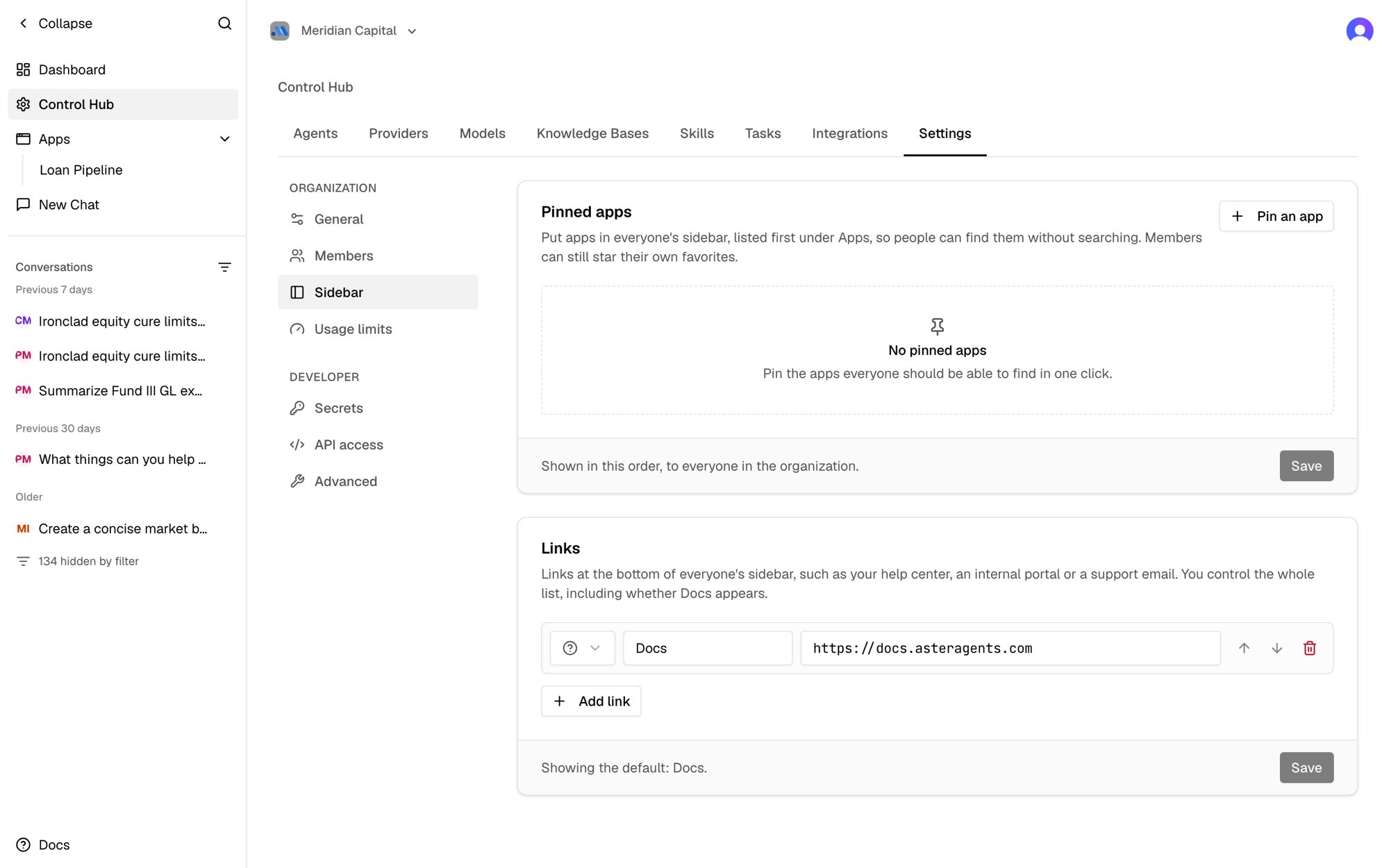 ## Pinned apps
Pinned apps appear first under **Apps** in every member's sidebar, in the order you choose, with a small pin icon. People who join later see them too.
1. Click **Pin an app** and search for the app.
2. Use the arrows to put pinned apps in order, or the trash icon to unpin one.
3. Click **Save**.
You can pin up to 10 apps. Pins sit alongside personal favorites: members can still star apps for themselves, and those appear below the pinned apps. Unpinning an app doesn't remove it from anyone's own favorites. If a pinned app is deleted, it disappears from the sidebar.
Pinning is done by admins in Settings, not by agents. Agents can tell you which apps are pinned, but they won't pin or unpin them.
## Links
The links at the bottom of the sidebar default to **Docs**. You can replace them with your own, for example your help center, an internal portal, or a support email address.
1. Click **Add link**.
2. Pick an icon, enter a label, and enter the URL.
3. Use the arrows to reorder links, or the trash icon to remove one.
4. Click **Save**.
Your list replaces the default entirely, so you decide whether the Docs link appears. To keep it, click **Add Aster Docs**. To remove every link, delete them all and save. **Reset to default** brings back the original Docs link.
* URLs must start with `https://`, `http://`, or `mailto:`.
* Web links open in a new tab, and `mailto:` links open the person's email app.
* You can add up to 8 links, with labels up to 40 characters.
This documentation is built and hosted on [Mintlify](https://mintlify.com), a developer documentation platform.
## Pinned apps
Pinned apps appear first under **Apps** in every member's sidebar, in the order you choose, with a small pin icon. People who join later see them too.
1. Click **Pin an app** and search for the app.
2. Use the arrows to put pinned apps in order, or the trash icon to unpin one.
3. Click **Save**.
You can pin up to 10 apps. Pins sit alongside personal favorites: members can still star apps for themselves, and those appear below the pinned apps. Unpinning an app doesn't remove it from anyone's own favorites. If a pinned app is deleted, it disappears from the sidebar.
Pinning is done by admins in Settings, not by agents. Agents can tell you which apps are pinned, but they won't pin or unpin them.
## Links
The links at the bottom of the sidebar default to **Docs**. You can replace them with your own, for example your help center, an internal portal, or a support email address.
1. Click **Add link**.
2. Pick an icon, enter a label, and enter the URL.
3. Use the arrows to reorder links, or the trash icon to remove one.
4. Click **Save**.
Your list replaces the default entirely, so you decide whether the Docs link appears. To keep it, click **Add Aster Docs**. To remove every link, delete them all and save. **Reset to default** brings back the original Docs link.
* URLs must start with `https://`, `http://`, or `mailto:`.
* Web links open in a new tab, and `mailto:` links open the person's email app.
* You can add up to 8 links, with labels up to 40 characters.
This documentation is built and hosted on [Mintlify](https://mintlify.com), a developer documentation platform.